

Enrol your child
Your coach shared this link with you. The app guides you in one go: your account, your child's account, then their club. You stay on your own parent account from start to finish.
Signing up for yourself? See the standard guideDo you already have an OSS Academy account?
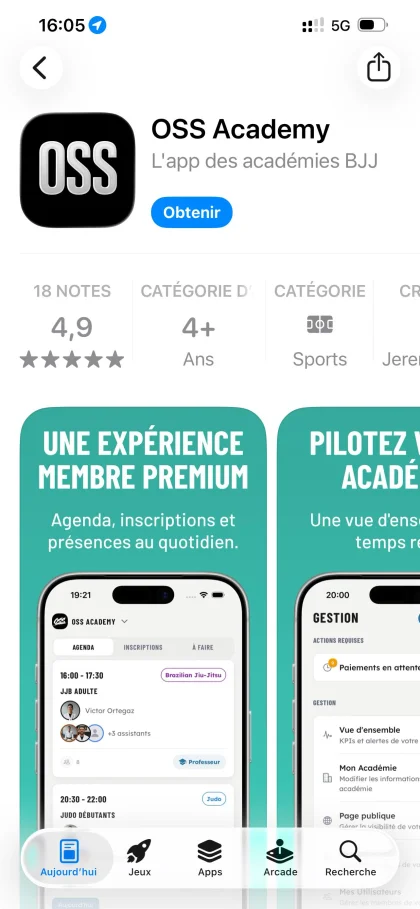

Download the app
OSS Academy is available on iPhone, Android and on the web. Install the app on your own phone: you, the parent, keep control of your child's account.
- Available on iOS, Android and web browser
- Installed in under a minute
- One parent account is enough, even for several children
Copy it before you download: the app will ask for it when you join the academy.
Say who will be training
Open the app, tap “Create an account” then “Join an academy”. The app asks who will be training: choose “My child”. The form that follows is yours, and a short one: no belt, no weight category, since your child is the one training.
- “Create an account”, then “Join an academy”
- When asked “Who will be training?”, choose “My child”
- Fill in your own details, then “Create my account”
Training too? Choose “My child and me”: the flow signs you both up, one after the other, with the same club code.
Create your child's account
The app moves straight on to your child's account, without taking you out of the flow. Enter their first name, date of birth and gender (their last name is already filled in), tick the parental consent box, then tap “Create child account”.
- Your child's first name, last name, date of birth and gender
- Tick parental consent, then “Create child account”
- Several children? “Add another child” keeps them in the same flow
Has the academy already created your child's account? Tap “My child already has an account” and enter the linking code they gave you.
Enter the club code
Last step: enter the code given by the academy, then tap “Join”. An “All done” summary confirms what was saved and the status of each person enrolled. You then enter the app, straight into your child's account if you do not train yourself.
- One code to enter, even for several children
- The summary shows the status of every person enrolled
- Depending on the club's settings, membership is approved at once or left pending
You never have to create a password for your child, or log out. Their account opens from yours, and you switch back in one tap.
Add your child
From your account, open the “Profile” tab, tap the “My accounts” card, then “My children”, and finally “Add a child”. Enter their first name, last name, date of birth and gender, tick the parental consent box, then confirm.
- “Profile” tab, “My accounts” card, then “My children”
- “Add a child”: first name, last name, date of birth and gender
- Tick parental consent, then “Create child account”
Has the academy already created your child's account? Use “Add an existing child account” with the invitation code they gave you.
Copy it now: the app will ask for it in the next step.
Join the club for them
Open “Join an academy”. The “Who is joining the academy?” picker lets you name your child: select them, enter the code given by the academy, then tap “Join for …”. You stay on your own account, and your child is the one joining the club.
- The “Who is joining the academy?” picker names the person being enrolled
- Enter the academy code, then “Join for …”
- The confirmation message names the child concerned
The “Your family” block at the top of the home screen opens each child's account in one tap.
Pay for their membership
Once the membership is approved, open the “Profile” tab, scroll down to “Billing” and tap “Subscribe”. An “Offers for” picker at the top of the catalogue names the person concerned. You pay from your own phone, and the subscription stays attached to your child's profile.
- “Profile” tab, “Billing” section, then “Subscribe”
- The “Offers for” picker states who you are subscribing for
- If the club has reserved an offer for minors, the app flags it on the card
- Secure online payment via Stripe, in one go or in instalments
- Several children? Just switch person in the picker
Your academy may require documents before enrolment (medical certificate, parental authorisation, rules to sign). You will find them under “Required documents” on your child's profile.